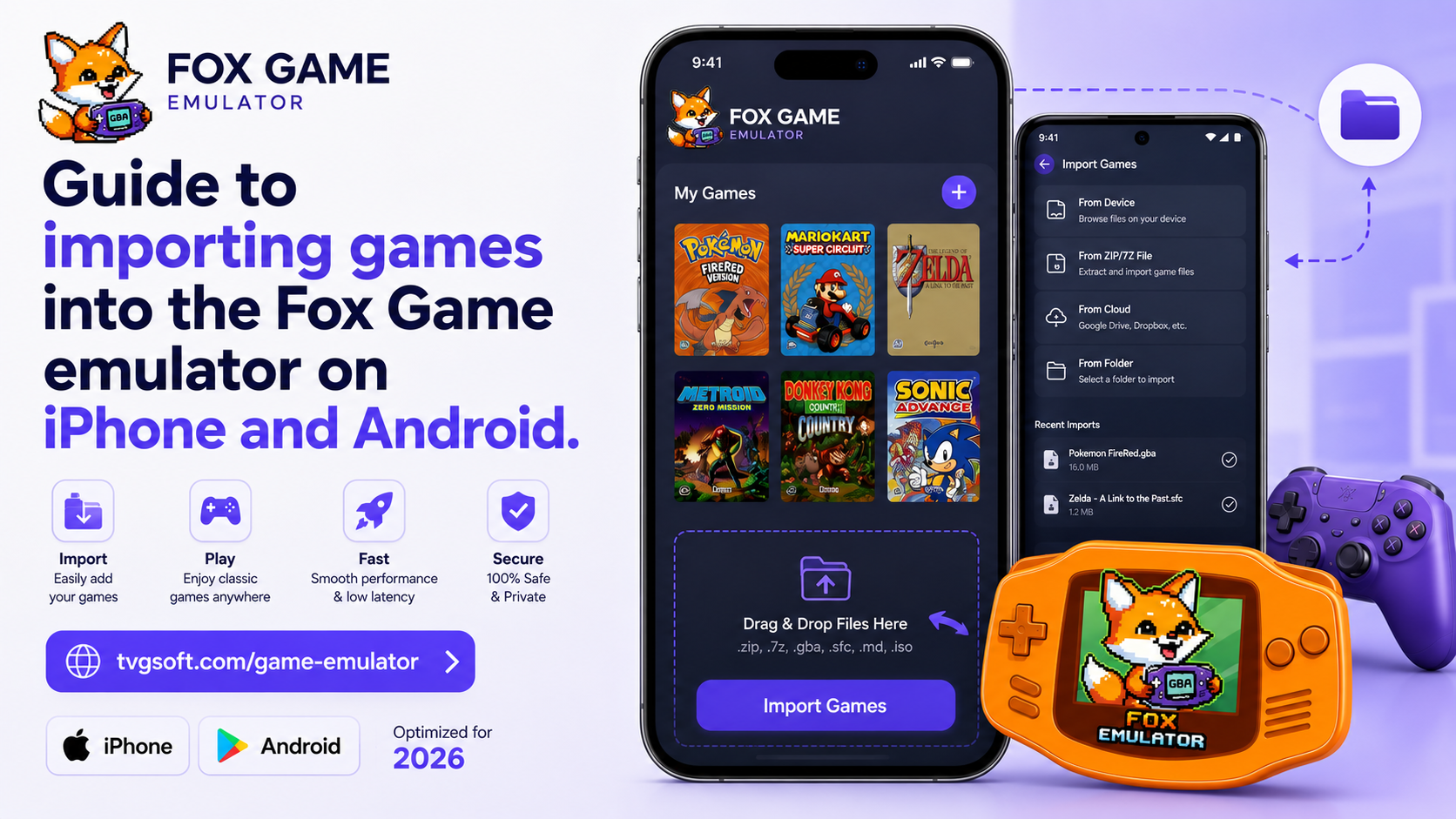
Fox Game Emulator does not ship with any games. It is the console — you bring the cartridges. This guide covers every way to get your own game files onto your phone and into the app, on both iPhone and Android, and what to do when a file refuses to load.
A note before you start: only use game files for titles you legally own. Fox Game Emulator does not include, host or link to any game files, and we can't help you find them.
What files the app accepts
Each system uses its own file extension. If your file ends in something else, it's probably compressed or it's the wrong kind of file entirely.
| System | Typical extensions |
|---|---|
| Game Boy Advance | .gba |
| Game Boy / Game Boy Color | .gb, .gbc |
| NES | .nes |
| SNES | .smc, .sfc |
| Nintendo 64 | .n64, .z64, .v64 |
| Nintendo DS | .nds |
| Sega Genesis / Mega Drive | .md, .bin, .gen |
Zip archives need to be unpacked first — see the troubleshooting section below.
Method 1 — the Files app (iPhone and iPad)
The most reliable route on iOS, and the one to use if a file is already on your device.
- Save your game file anywhere in the Files app — On My iPhone, iCloud Drive or a folder you've synced from a computer.
- Open Fox Game Emulator and tap Import.
- Choose Files, browse to the game and select it.
- It appears in your library. Tap it to play.
You can select several files at once, so a whole folder of games imports in one pass.
Method 2 — iCloud Drive
Useful when the files live on your Mac or PC and you'd rather not plug anything in.
- Drop the game files into any iCloud Drive folder from your computer.
- Wait for them to finish uploading — a file still showing a cloud icon hasn't downloaded to the phone yet.
- In the app, tap Import → Files → iCloud Drive and pick them.
If the import stalls, open the file once in the Files app first. That forces iOS to download it locally, and the import then completes instantly.
Method 3 — Wi-Fi transfer
No cables and no cloud account, as long as both devices are on the same network.
- Tap Import → Wi-Fi Transfer in the app. An address appears on screen.
- Type that address into a browser on your computer.
- Drag your game files onto the page that opens.
- They land in your library as soon as the upload finishes.
Both devices must be on the same Wi-Fi network. Guest networks and networks with client isolation enabled will block the connection — that's the usual reason the page won't load.
Method 4 — direct storage access (Android)
On Android you can skip the import step entirely.
- Copy your game files into any folder —
Downloadworks fine. - In the app, tap Import and browse to that folder.
- Select the games you want.
Files copied over USB from a computer work exactly the same way; give the phone a moment to index them if they don't show up immediately.
After importing: two things worth doing
Pick a controller skin. Open a game, tap the screen and open the layout options. The default themes match each original console, and the Fox theme packs restyle the whole layout. Choosing one that fits your thumbs matters more than it sounds — it's the difference between a comfortable session and a cramped one.
Learn the save states. The in-game save that a cartridge offers still works, but save states snapshot the exact moment you're in and restore it instantly. Use them before a boss, before a branching choice, or any time you have to put the phone down.
Troubleshooting
The file is a .zip or .7z. Unpack it first. On iOS, tap the archive in
the Files app and it expands into a folder in place. On Android, any file
manager will do it. Import the game file from inside, not the archive.
The game doesn't appear after importing. Check the extension against the
table above. A file downloaded through a browser sometimes arrives with an extra
extension appended, like game.gba.txt — rename it so it ends in the real one.
Wi-Fi transfer page won't open. Confirm both devices are on the same network, then disable any VPN on either device. A VPN routes the phone's traffic off the local network, which is enough to break the link.
A Nintendo DS game runs slowly. DS emulation is the most demanding of the supported systems. Close background apps first; on older devices, some DS titles will run better than others.
In short
Get the file onto the phone, then import it — through Files or iCloud on iOS, Wi-Fi transfer on either platform, or straight from storage on Android. Once a game is in your library it stays there, along with its saves, and you can jump back into it in two taps.